Introduction
benviplot provides convenience functions for creating
common chart types. These functions simplify the plotting process while
maintaining full ggplot2 compatibility, making them perfect for:
- Data exploration: Quickly visualize patterns
- Reports: Reduce code repetition
- Prototyping: Test different visualizations rapidly
All plot functions return standard ggplot2 objects, so you can add layers, modify themes, and customize freely.
Common Parameters
Most plot functions share these parameters:
| Parameter | Description | Default |
|---|---|---|
data |
A data.frame or tibble | Required |
x |
Variable for x-axis | Required |
y |
Variable for y-axis | Required |
variable |
Grouping variable for colors | Optional |
palette |
Palette name (e.g., “qual_5”) | Function-specific |
scale_name |
Legend title | "" |
scale_label |
Legend labels | waiver() |
color |
Single color (when no grouping) | Auto |
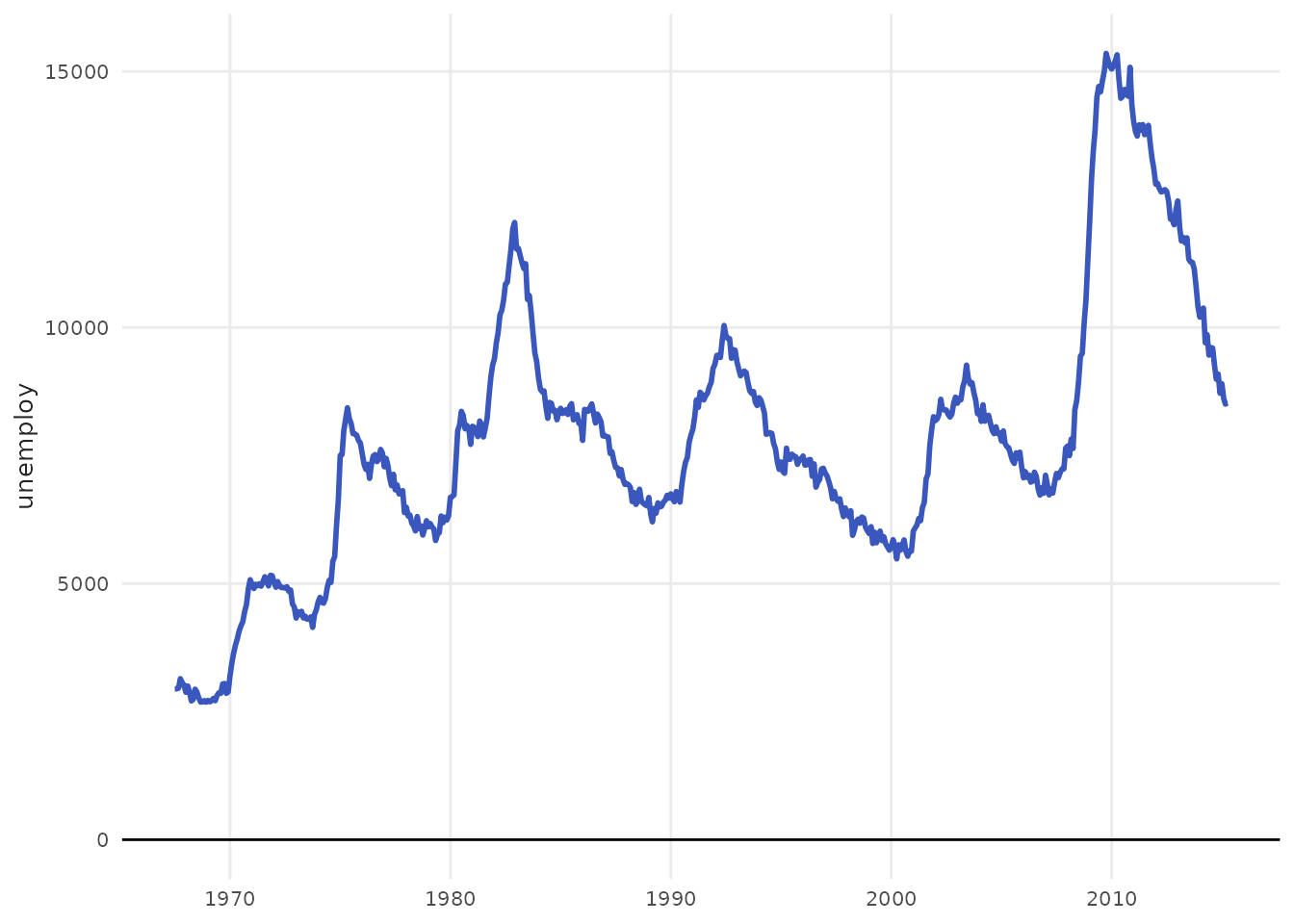
plot_line()
Create line charts for time series and trends.
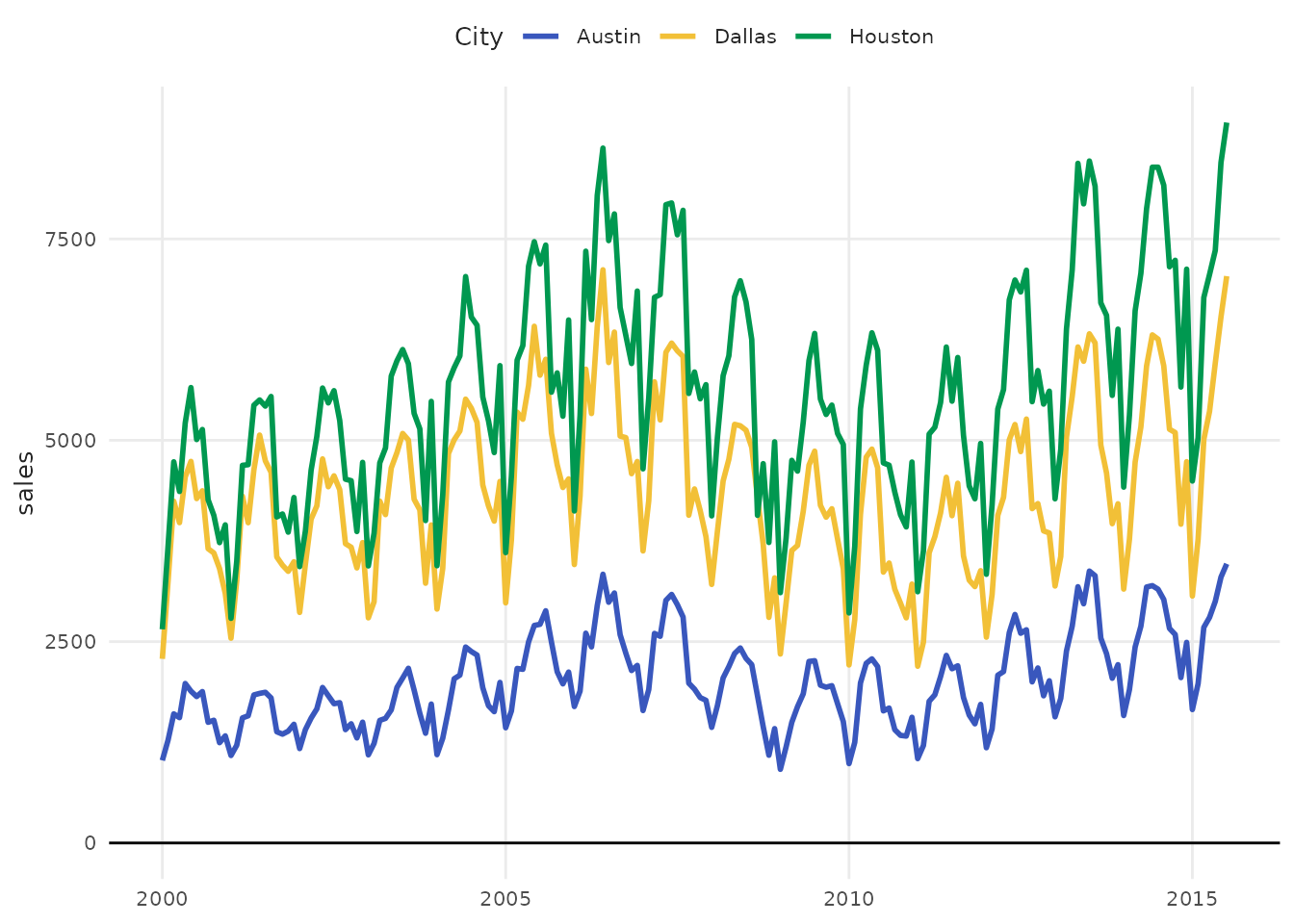
Multiple Lines
# Filter for demonstration
index_subset <- subset(
  iqaiw,
  rooms == "Total" & name_muni %in% c("São Paulo", "Rio de Janeiro", "Belo Horizonte")
)

plot_line(
  index_subset,
  x = date,
  y = index,
  variable = name_muni,
  pal_name = "qual_benvi",
  scale_name = "City"
)
With Points
# Sample data
monthly_sales <- data.frame(
  month = 1:12,
  revenue = c(120, 135, 145, 142, 158, 165, 170, 168, 175, 180, 190, 195)
)

plot_line(monthly_sales, x = month, y = revenue, point = TRUE)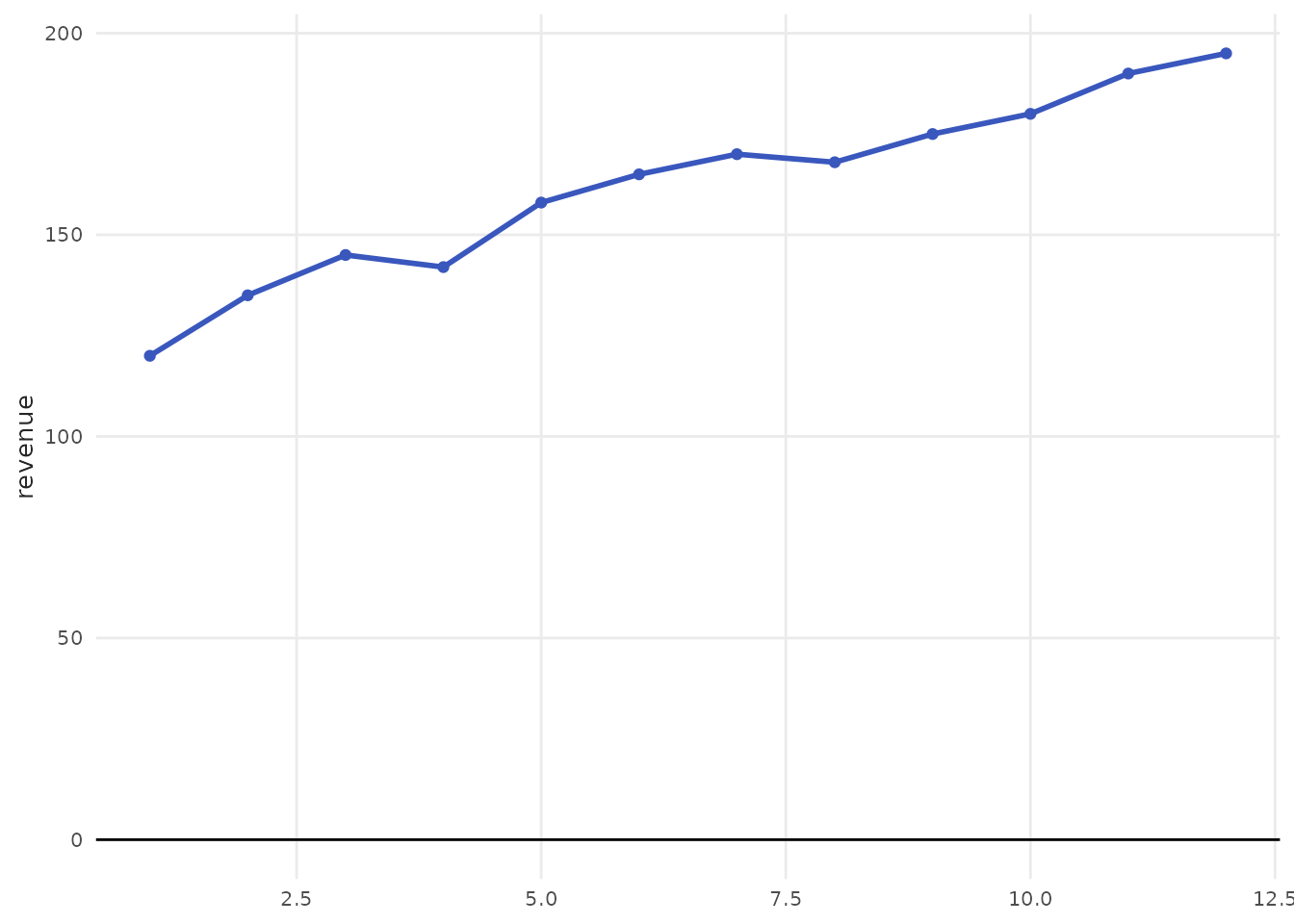
plot_column()
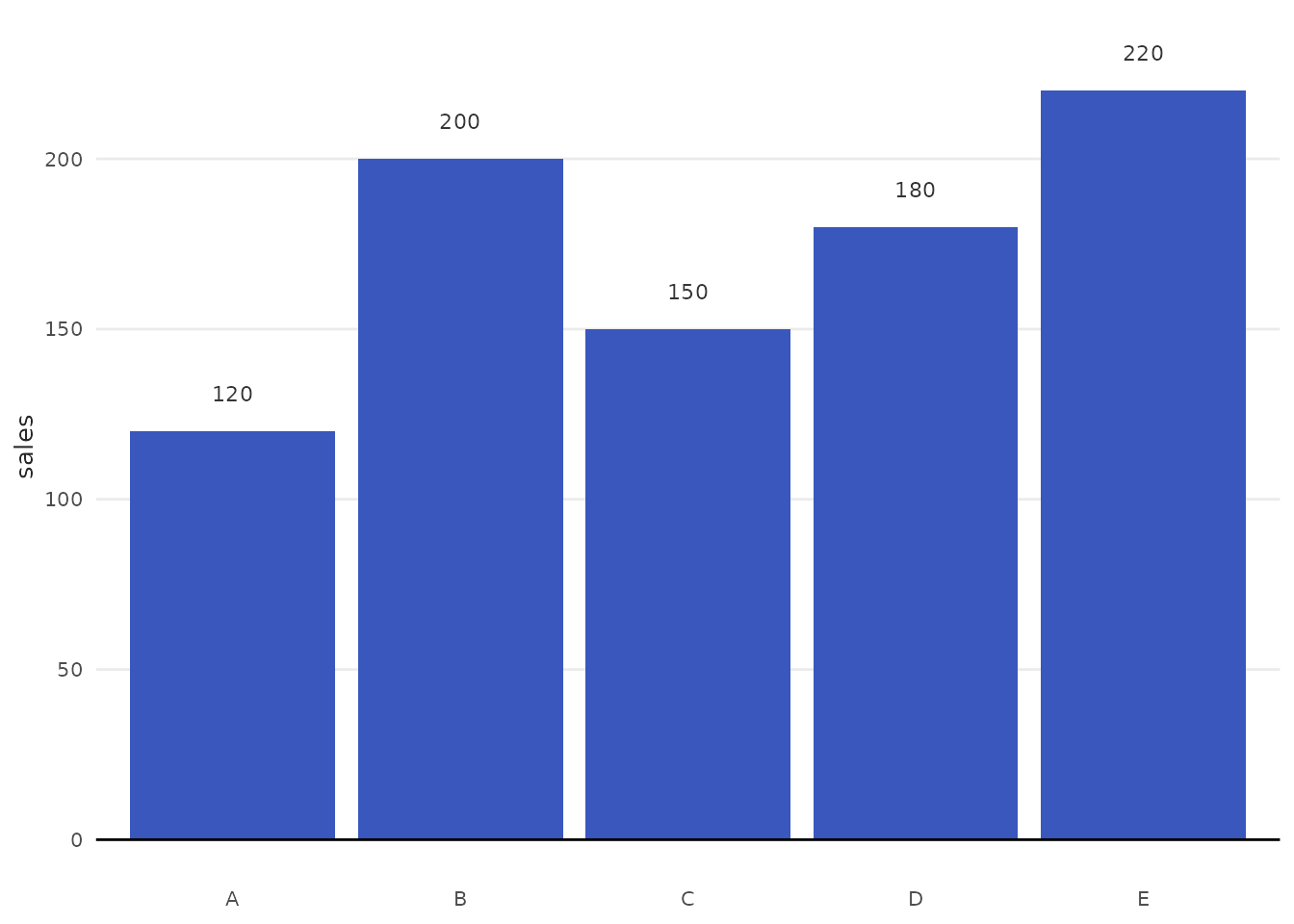
Create bar/column charts for categorical comparisons.
Basic Bar Chart
# Sample data
products <- data.frame(
  product = c("A", "B", "C", "D", "E"),
  sales = c(120, 200, 150, 180, 220)
)

plot_column(products, x = product, y = sales)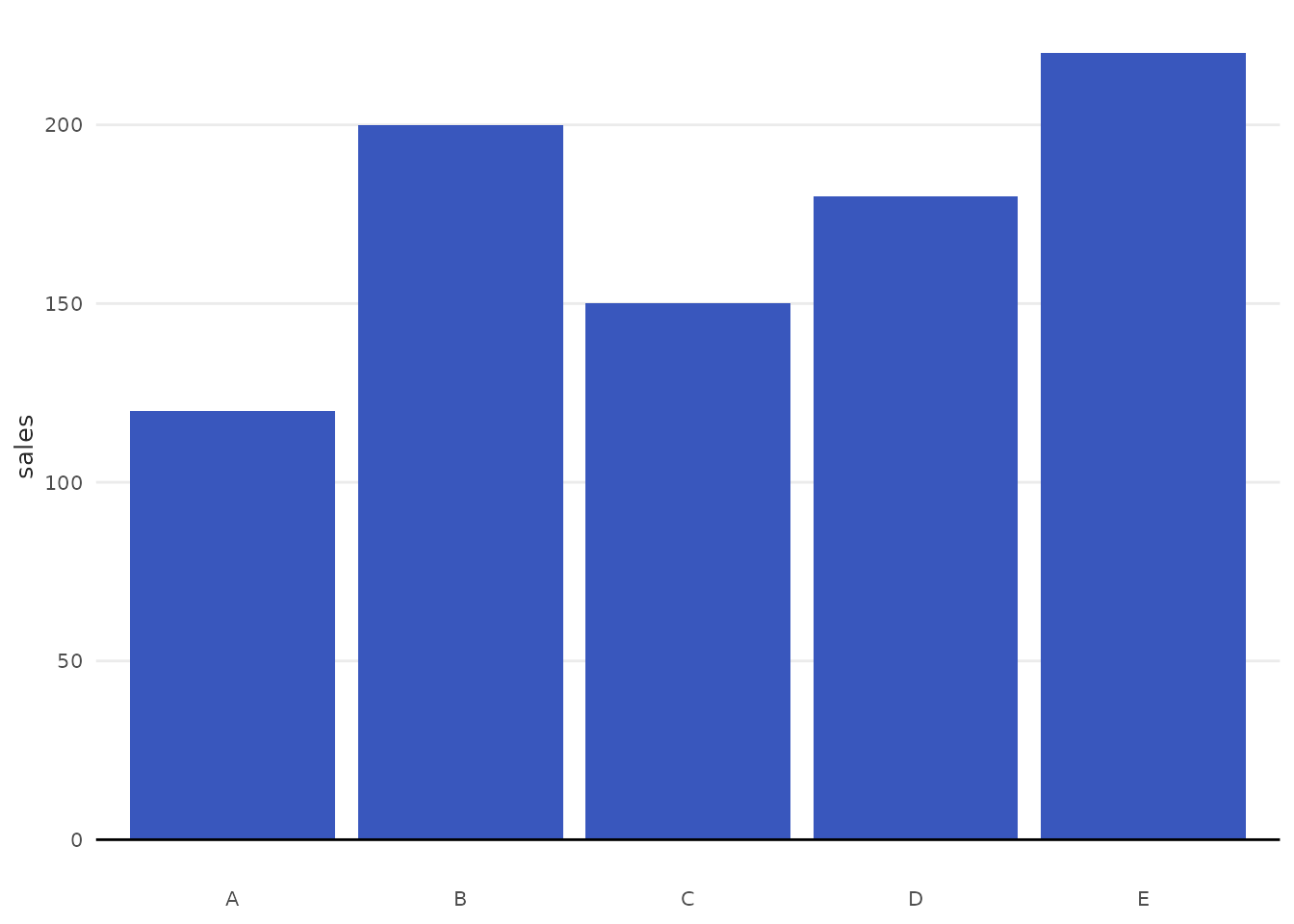
Grouped Bars
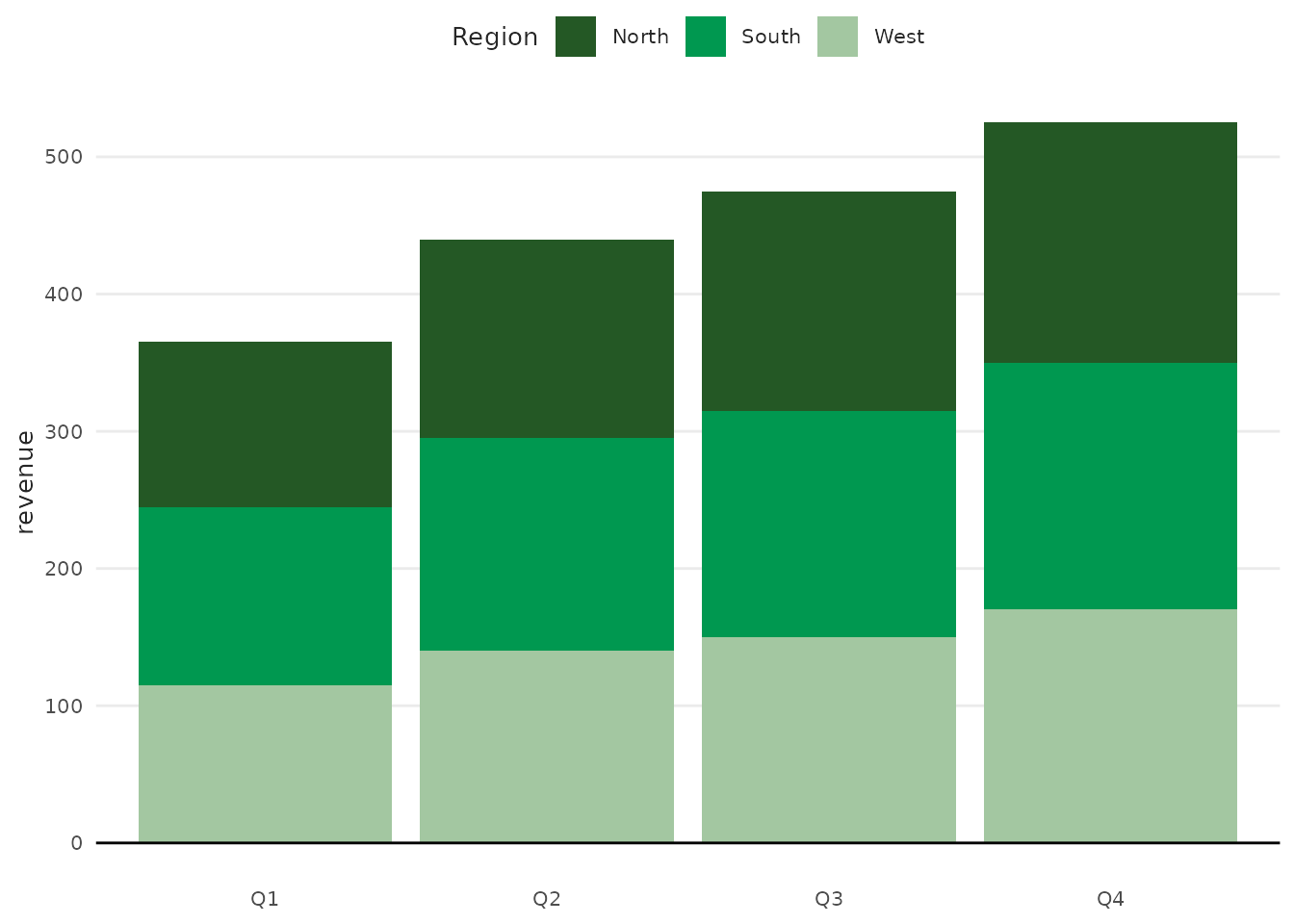
# Data with groups
quarterly <- data.frame(
  quarter = rep(c("Q1", "Q2", "Q3", "Q4"), each = 3),
  region = rep(c("North", "South", "West"), 4),
  revenue = c(120, 130, 115, 145, 155, 140, 160, 165, 150, 175, 180, 170)
)

plot_column(
  quarterly,
  x = quarter,
  y = revenue,
  variable = region,
  palette = "greens",
  scale_name = "Region"
)
plot_scatter()
Create scatter plots to visualize relationships between variables.
Basic Scatter
# Listing vs contract prices
spo_latest <- subset(sales_report, name_muni == "São Paulo" & date == max(date))
plot_scatter(spo_latest, x = price_m2_listing, y = price_m2_contract)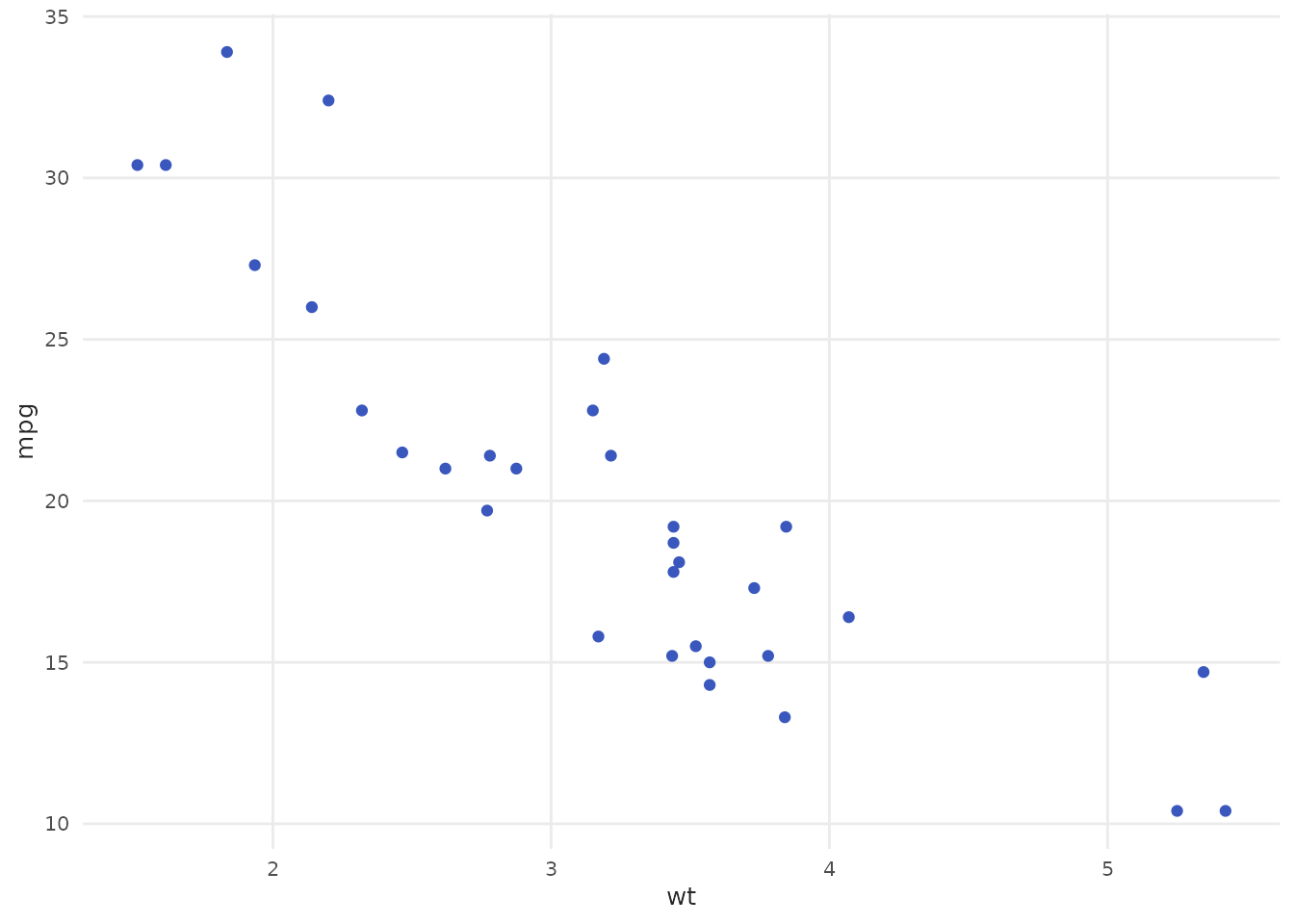
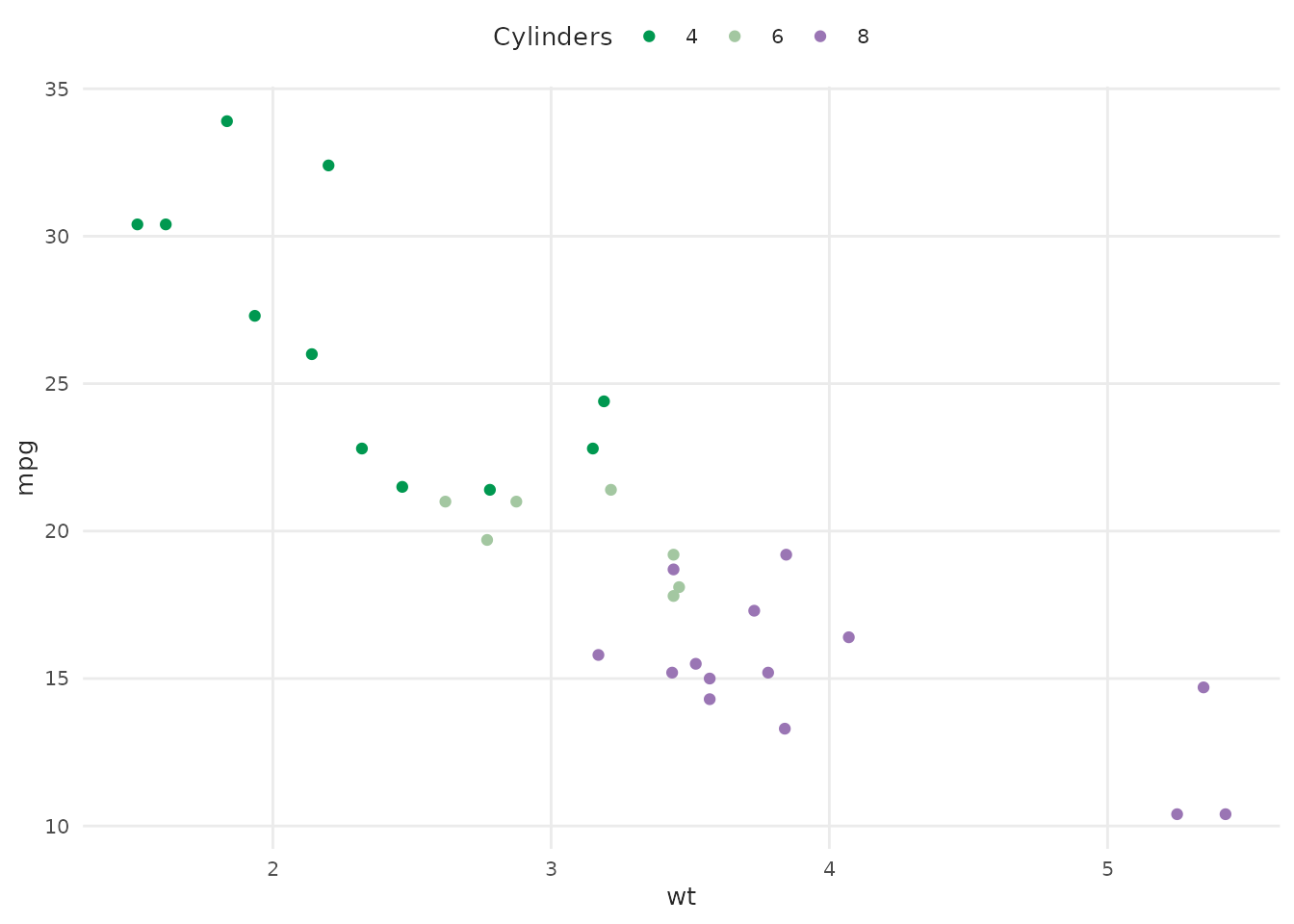
With Groups
# Compare listing vs contract by city
latest_sales <- subset(sales_report, date == max(date))
plot_scatter(
  latest_sales,
  x = price_m2_listing,
  y = price_m2_contract,
  variable = name_muni,
  palette = "qual_benvi",
  scale_name = "City"
)
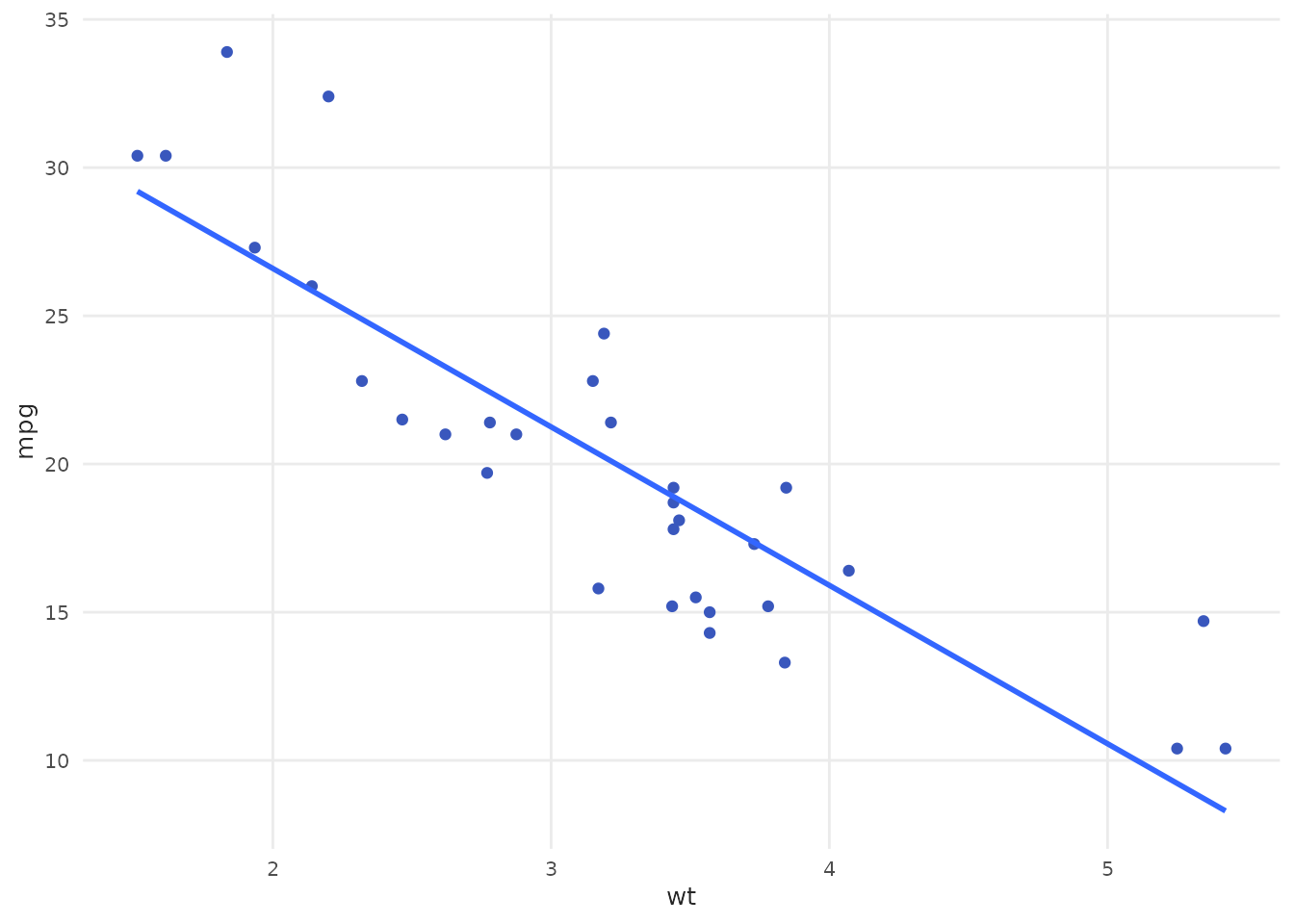
With Trend Line
plot_scatter(
  spo_latest,
  x = price_m2_listing,
  y = price_m2_contract,
  fit = TRUE,
  fit_method = "lm"
)
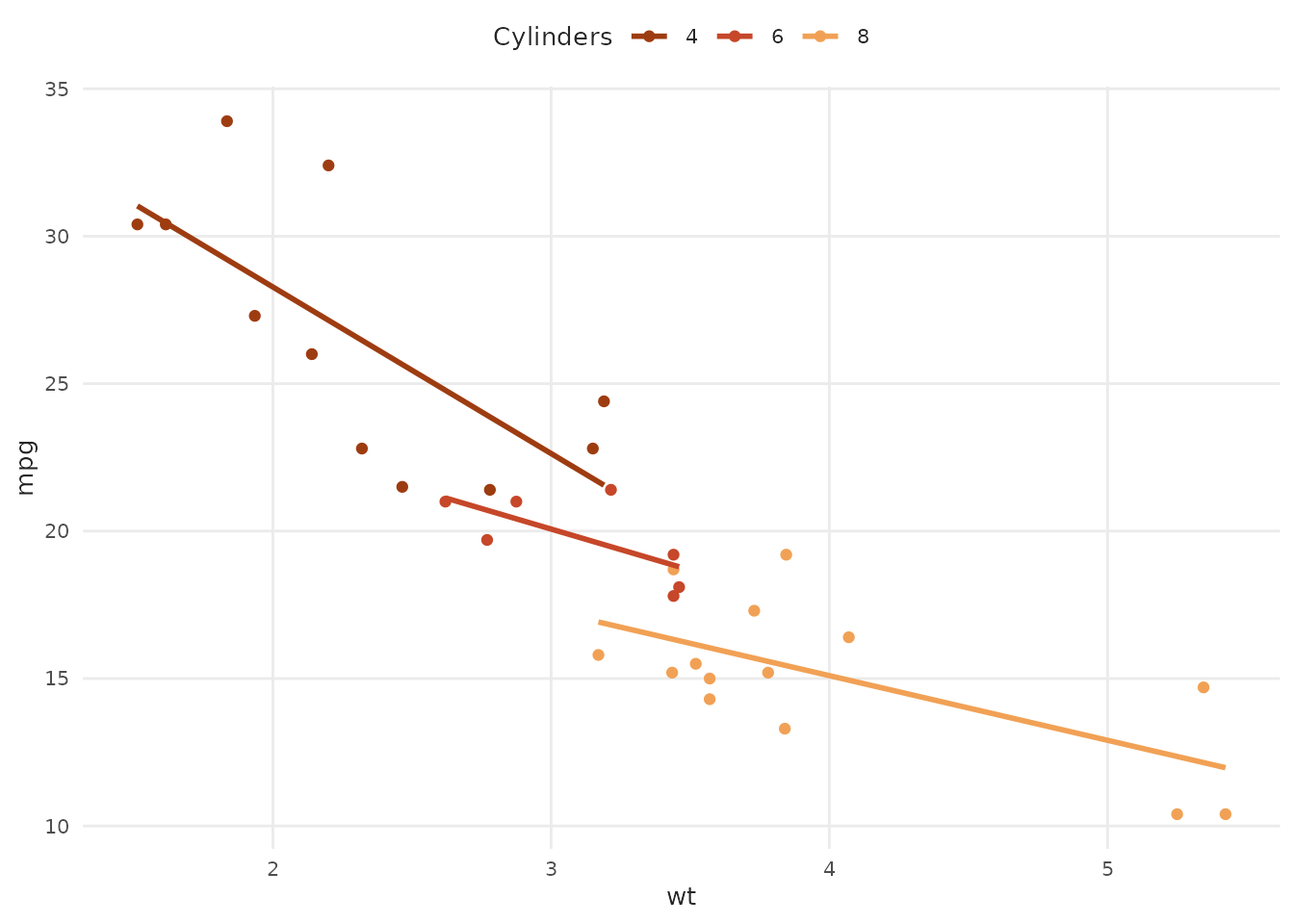
Grouped Trend Lines
plot_scatter(
  latest_sales,
  x = price_m2_listing,
  y = price_m2_contract,
  variable = name_muni,
  fit = TRUE,
  fit_variable = TRUE,
  fit_method = "lm",
  palette = "qual_benvi",
  scale_name = "City"
)
With Axis Lines
# Create sample data with negative values
scatter_data <- data.frame(
  x = rnorm(50, 0, 2),
  y = rnorm(50, 0, 2)
)

plot_scatter(scatter_data, x = x, y = y, zero = "both")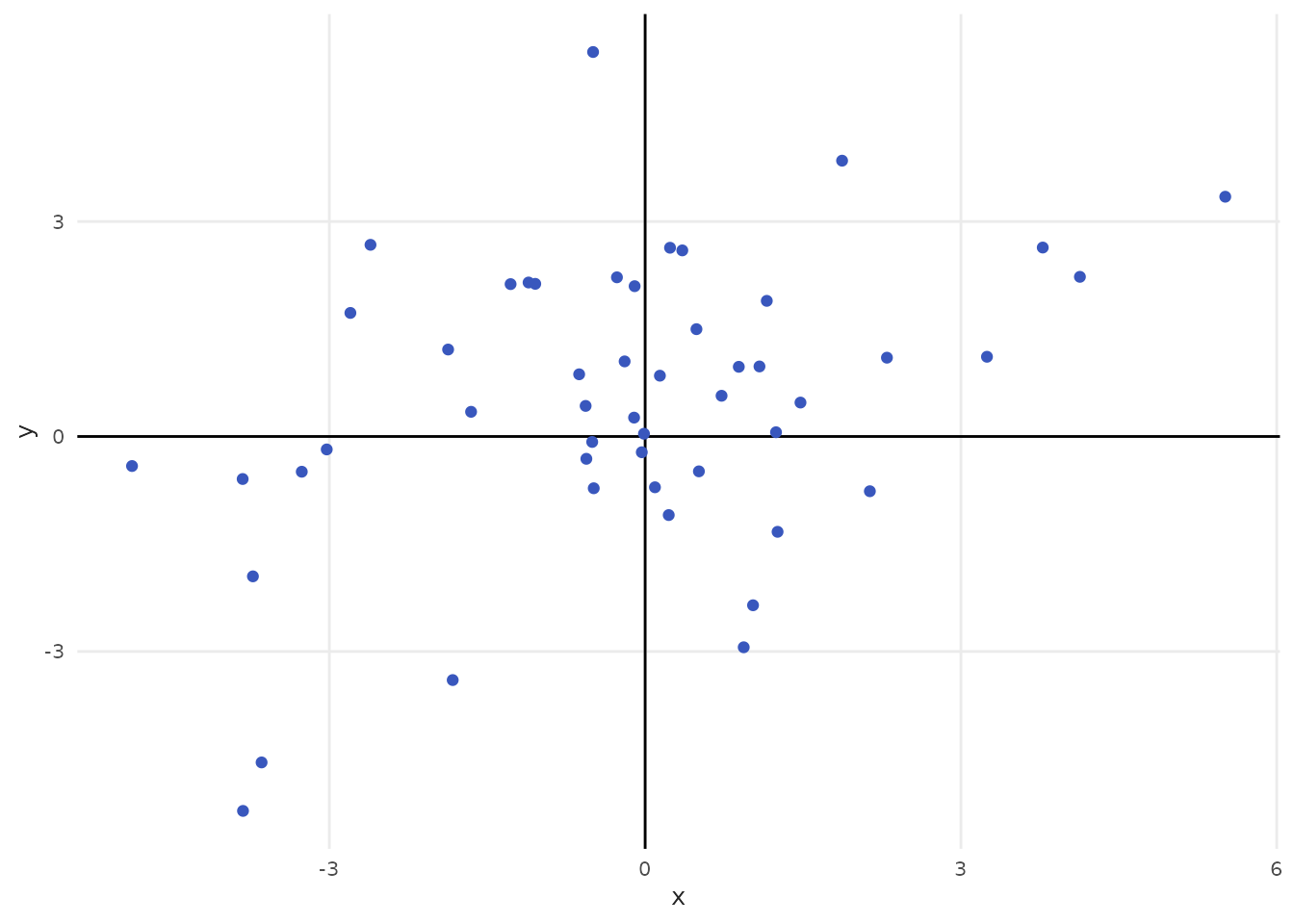
plot_area()
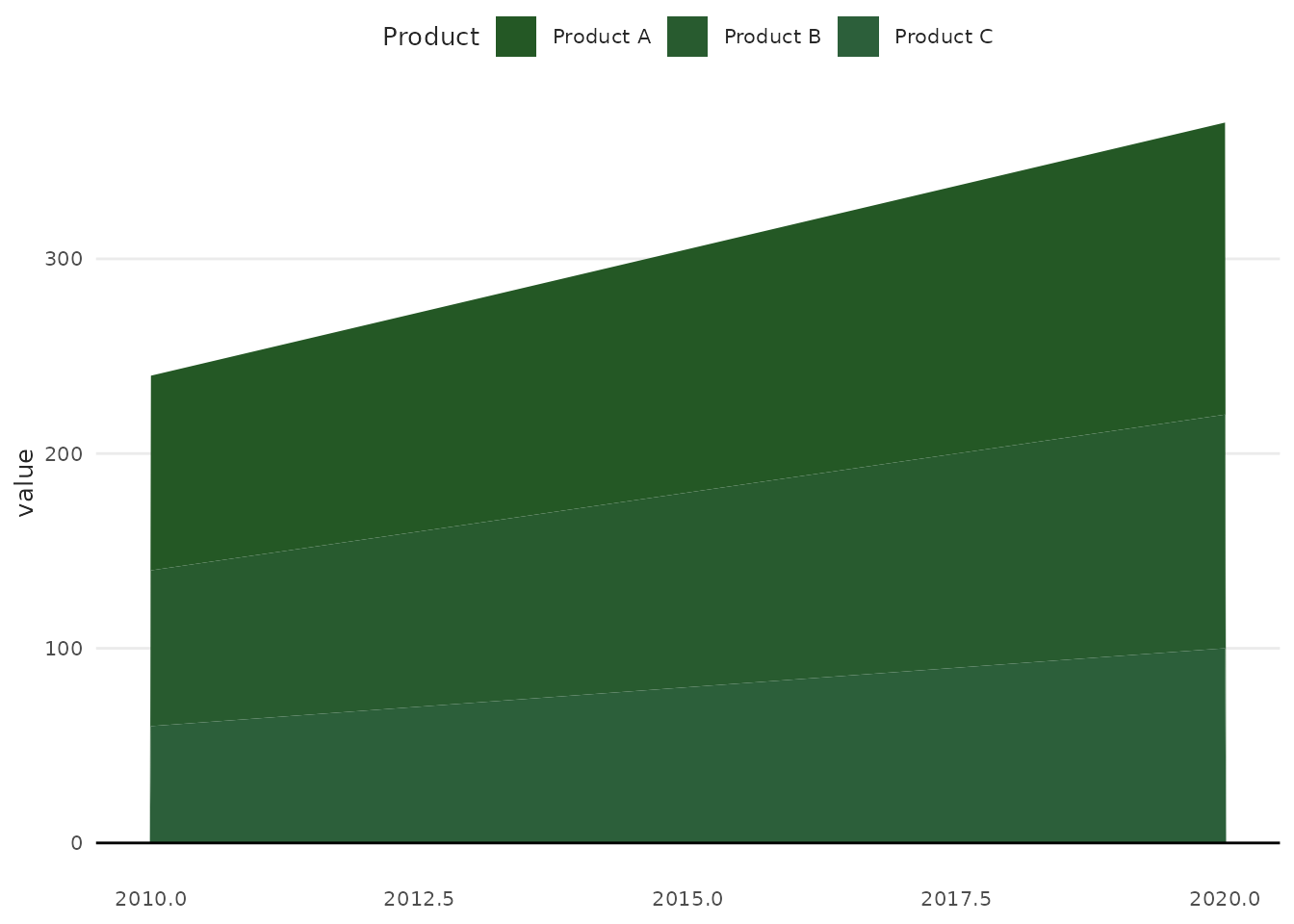
Create area charts for showing cumulative values or proportions.
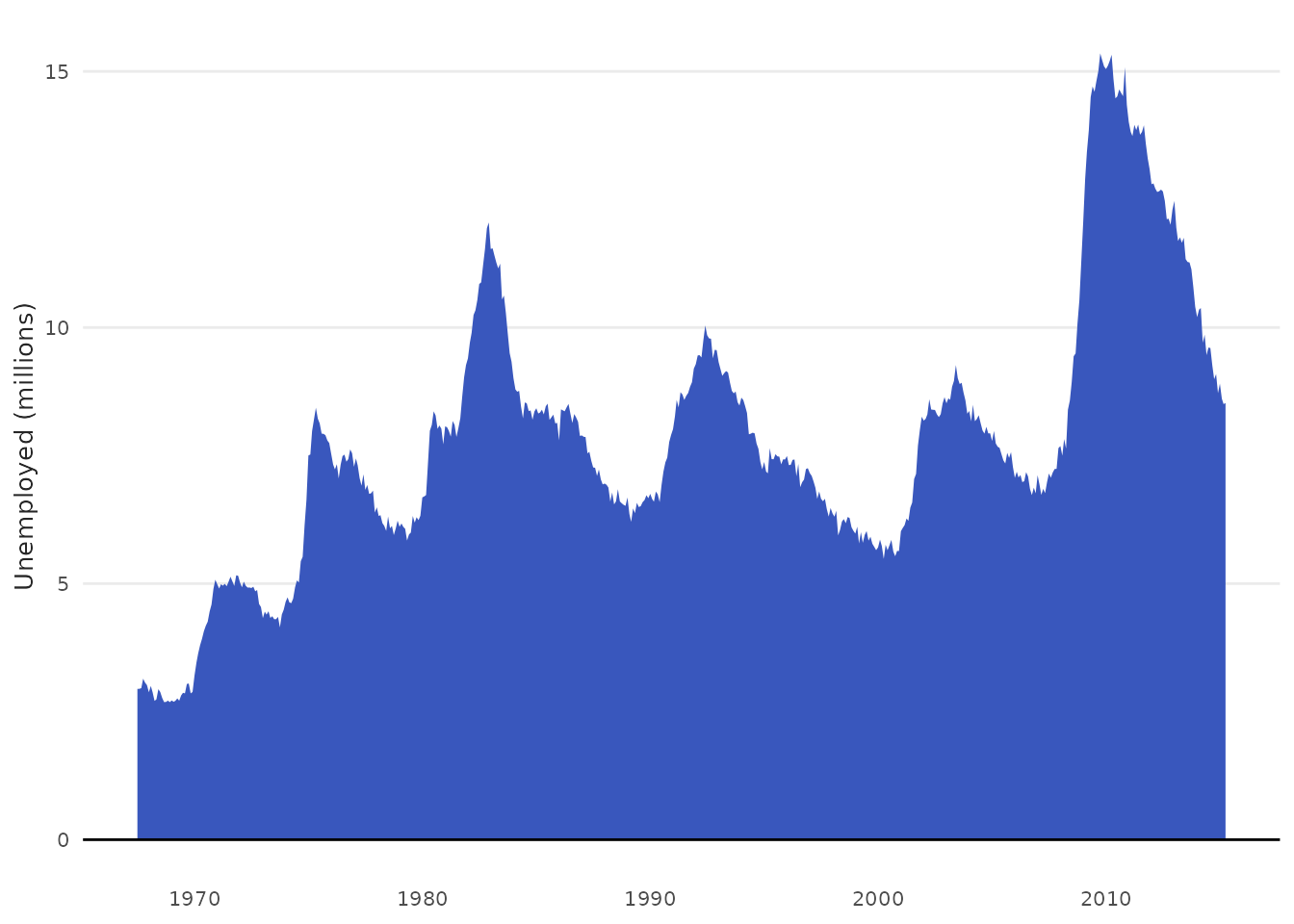
Stacked Area
# Sample data
time_series <- data.frame(
  year = rep(2010:2020, 3),
  category = rep(c("Product A", "Product B", "Product C"), each = 11),
  value = c(
    seq(100, 150, length.out = 11),
    seq(80, 120, length.out = 11),
    seq(60, 100, length.out = 11)
  )
)

plot_area(
  time_series,
  x = year,
  y = value,
  variable = category,
  palette = "seq_greens",
  scale_name = "Product"
)
plot_histogram()
Create histograms to visualize distributions.
Basic Histogram
# Distribution of rental prices per m2
iqaiw_total <- subset(iqaiw, rooms == "Total")
plot_histogram(iqaiw_total, x = price_m2)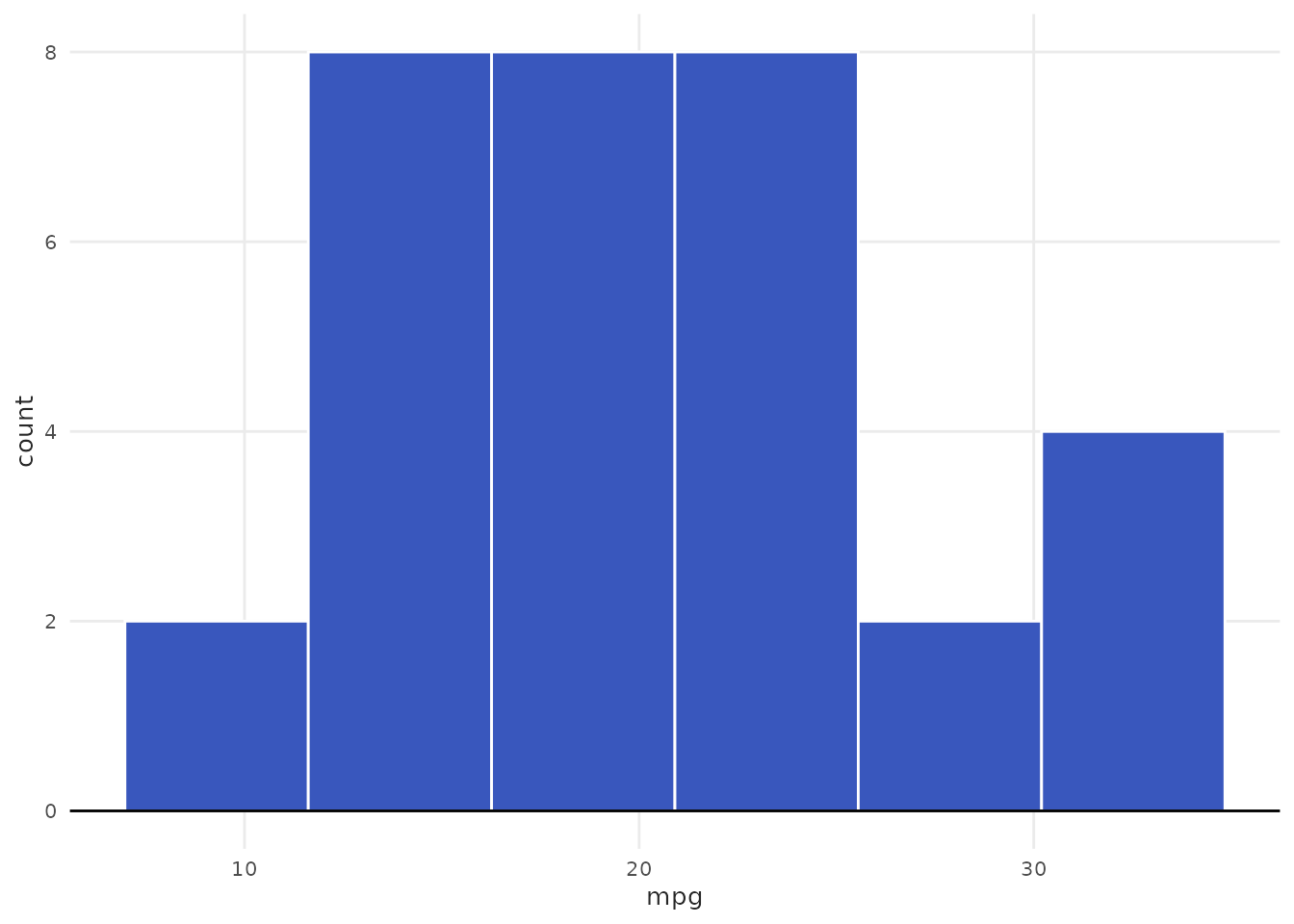
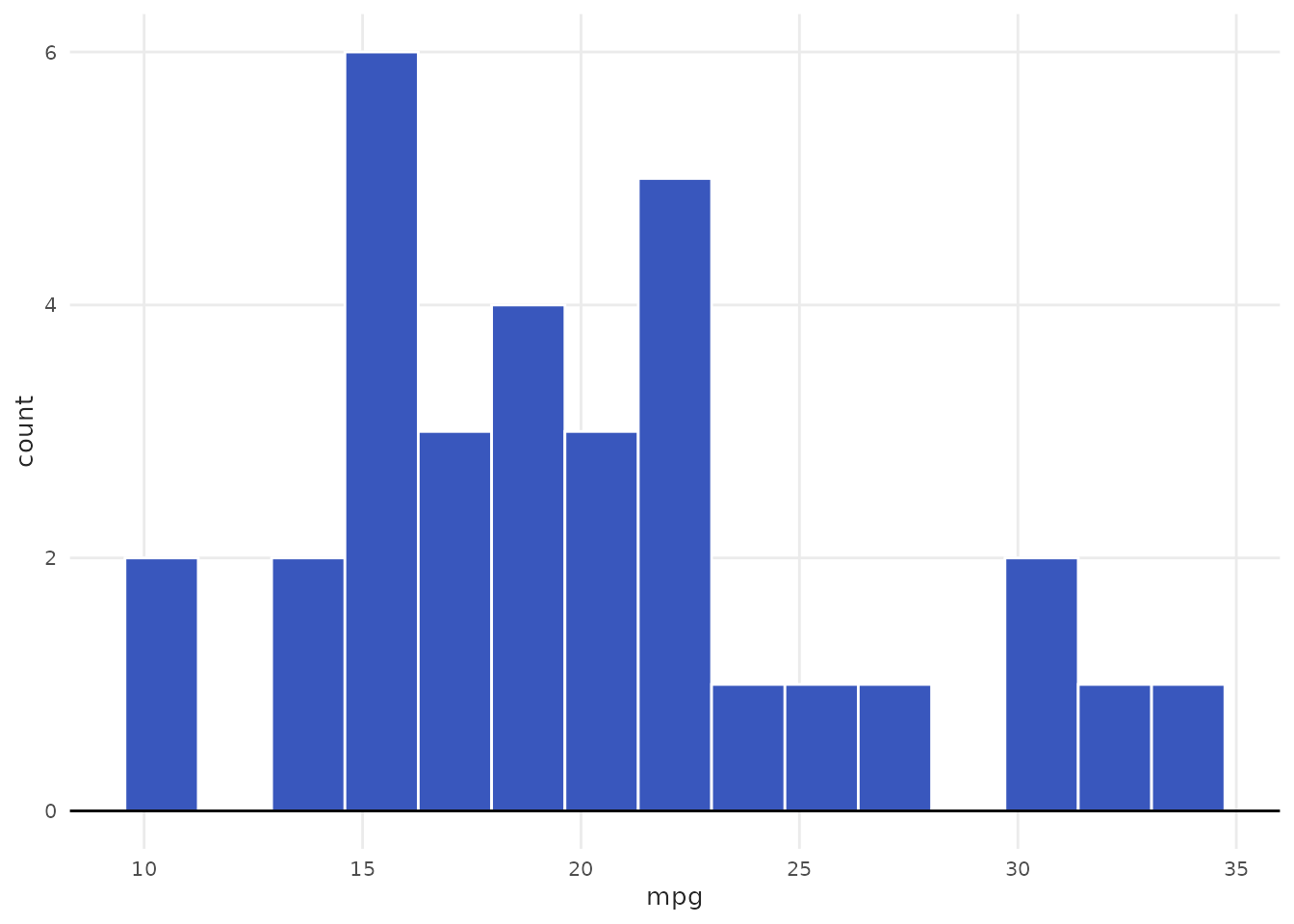
With Faceting
# Distribution by city (using faceting is clearer than stacking for histograms)
plot_histogram(
  iqaiw_total,
  x = price_m2,
  facet = name_muni,
  ncol = 3
) +
  labs(subtitle = "Rental price distribution by city")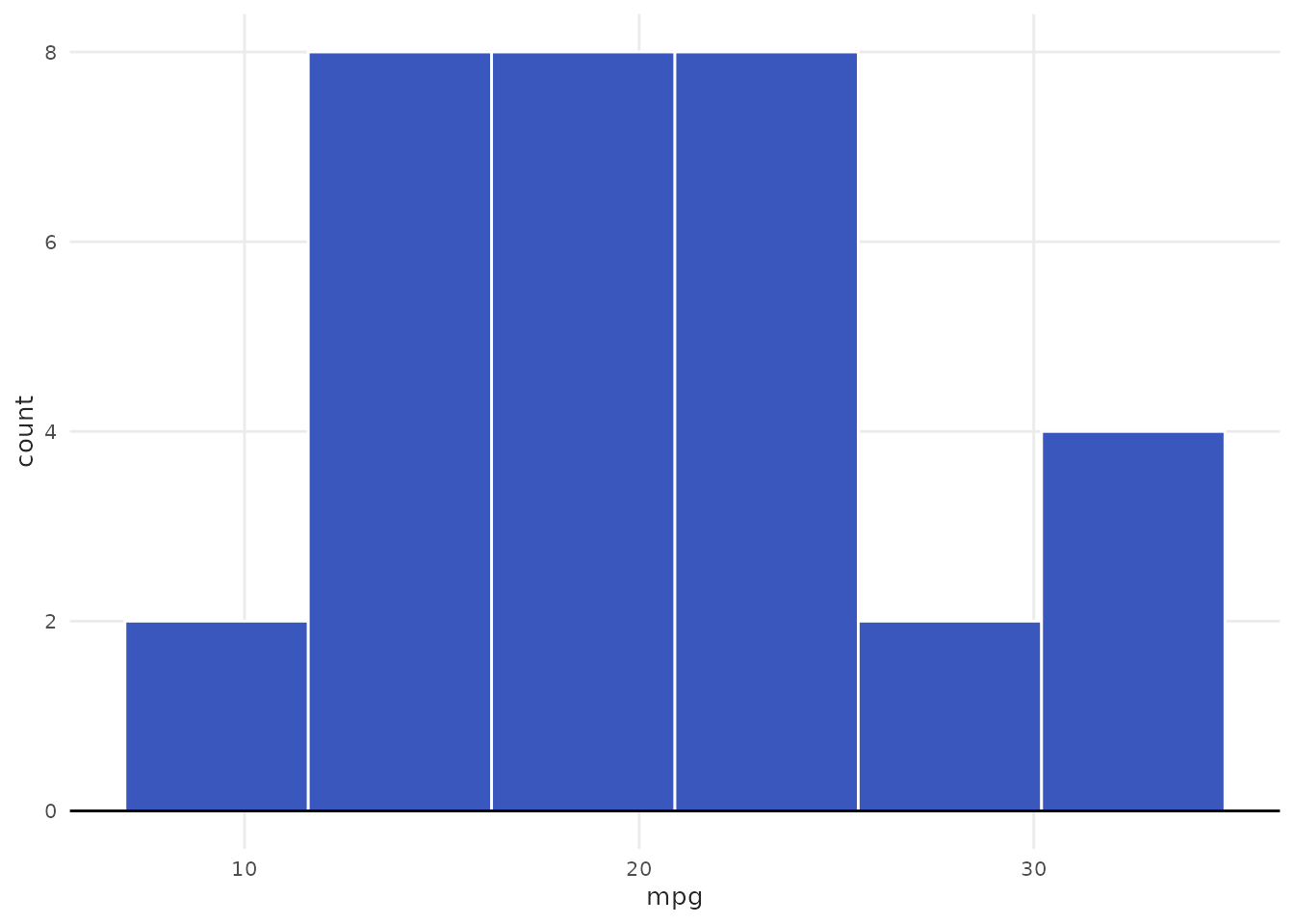
Different Binning Methods
# Using Freedman-Diaconis rule
plot_histogram(iqaiw_total, x = price_m2, method = "fd") +
  labs(subtitle = "Freedman-Diaconis binwidth")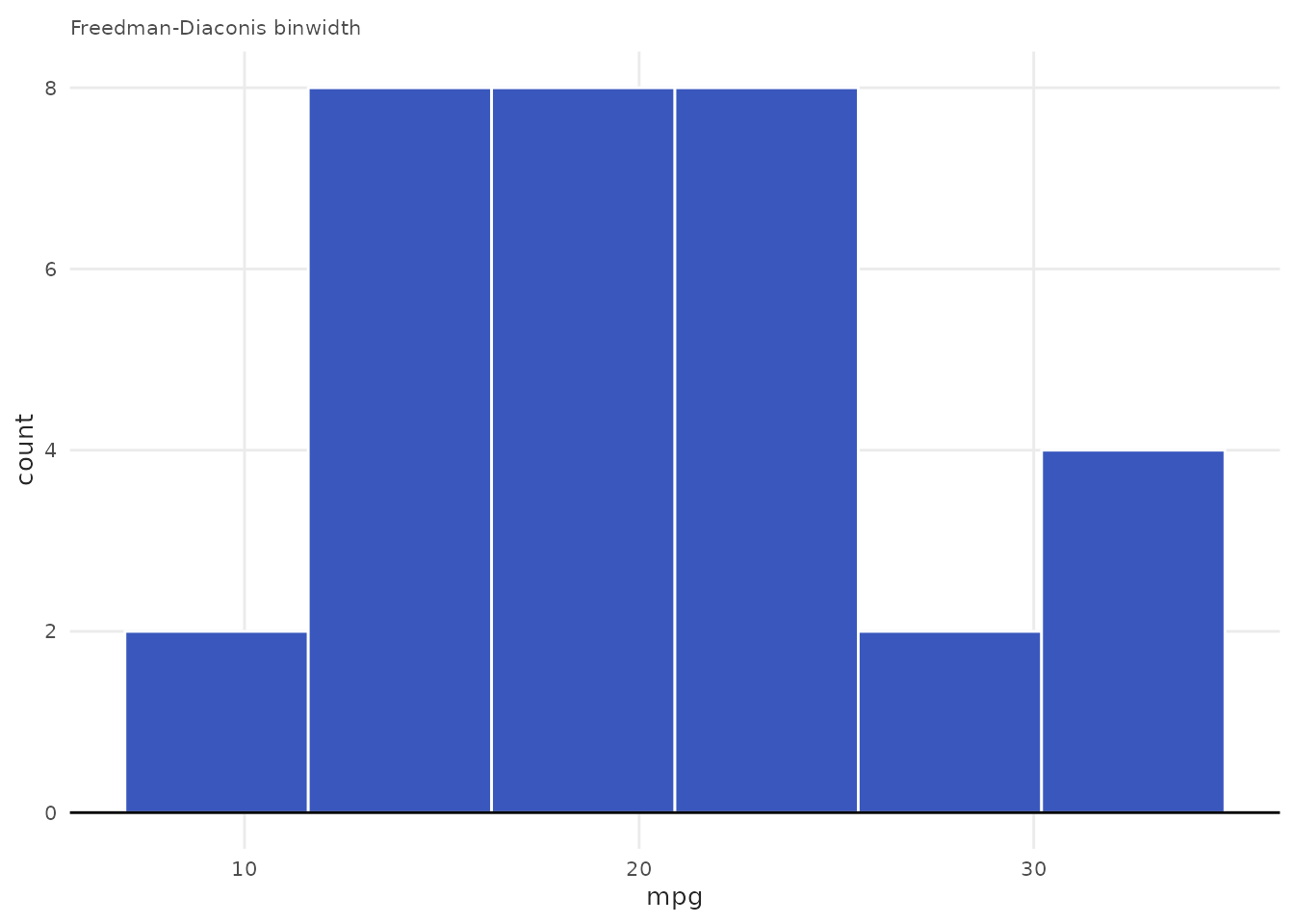
Advanced Examples
Combining Multiple Layers
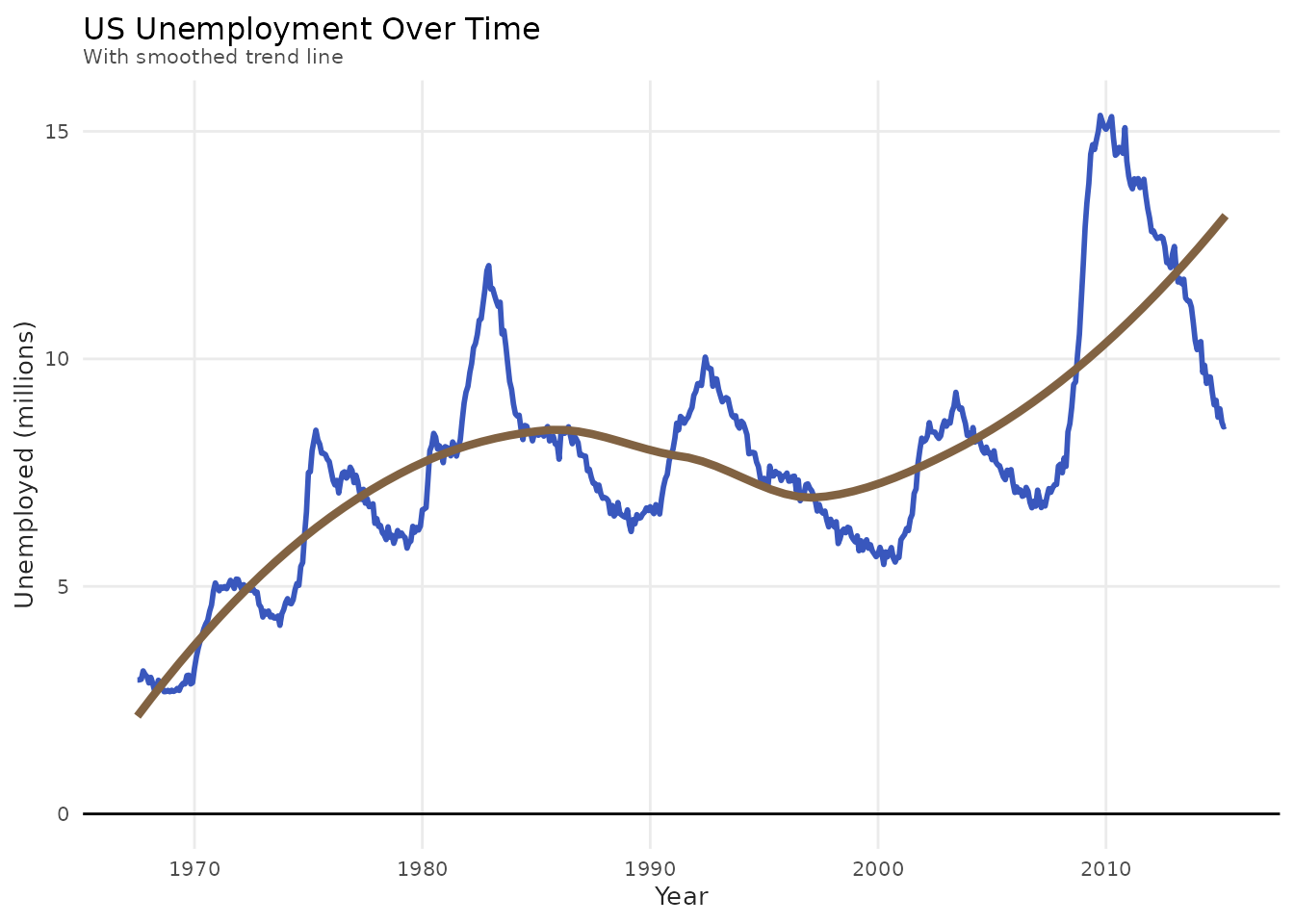
All plot functions return ggplot objects, so you can add layers:
plot_line(iqa, x = date, y = index) +
  geom_smooth(
    method = "loess",
    se = FALSE,
    color = benvi_palette("benvi_purple")[3],
    linewidth = 1.5
  ) +
  labs(
    title = "Rio de Janeiro Rental Price Index",
    subtitle = "With smoothed trend line",
    x = "Year",
    y = "Index (base = 100)"
  )
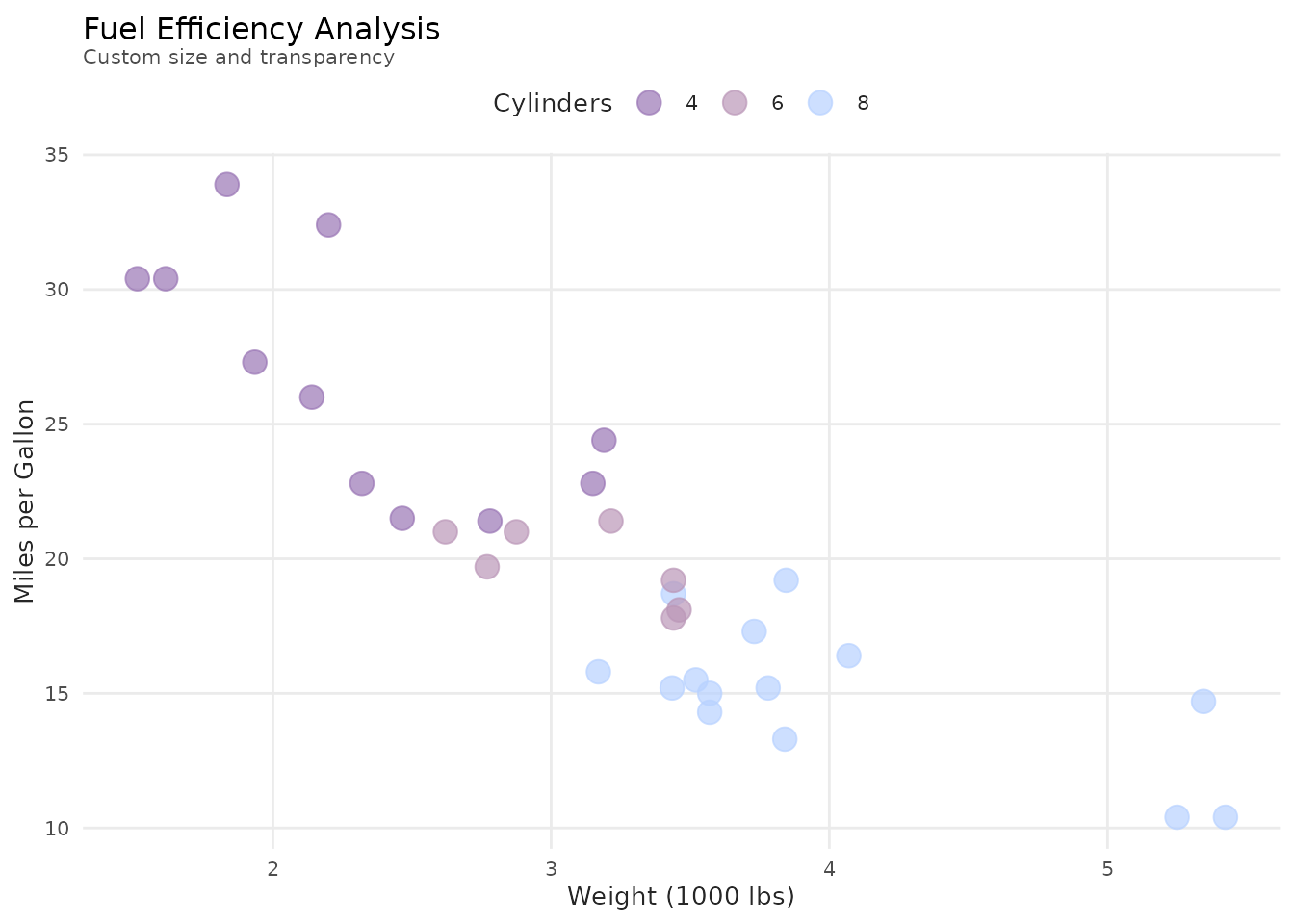
Customizing Aesthetics
plot_scatter(
  latest_sales,
  x = price_m2_listing,
  y = price_m2_contract,
  variable = name_muni,
  palette = "qual_benvi",
  scale_name = "City",
  size = 4,  # Passed to geom_point via ...
  alpha = 0.7
) +
  labs(
    title = "Listing vs Contract Prices by City",
    subtitle = "Custom size and transparency",
    x = "Listing Price (R$/m²)",
    y = "Contract Price (R$/m²)"
  )
Faceting
plot_scatter(latest_sales, x = price_m2_listing, y = price_m2_contract) +
  facet_wrap(~ name_muni) +
  labs(title = "Listing vs Contract Prices by City")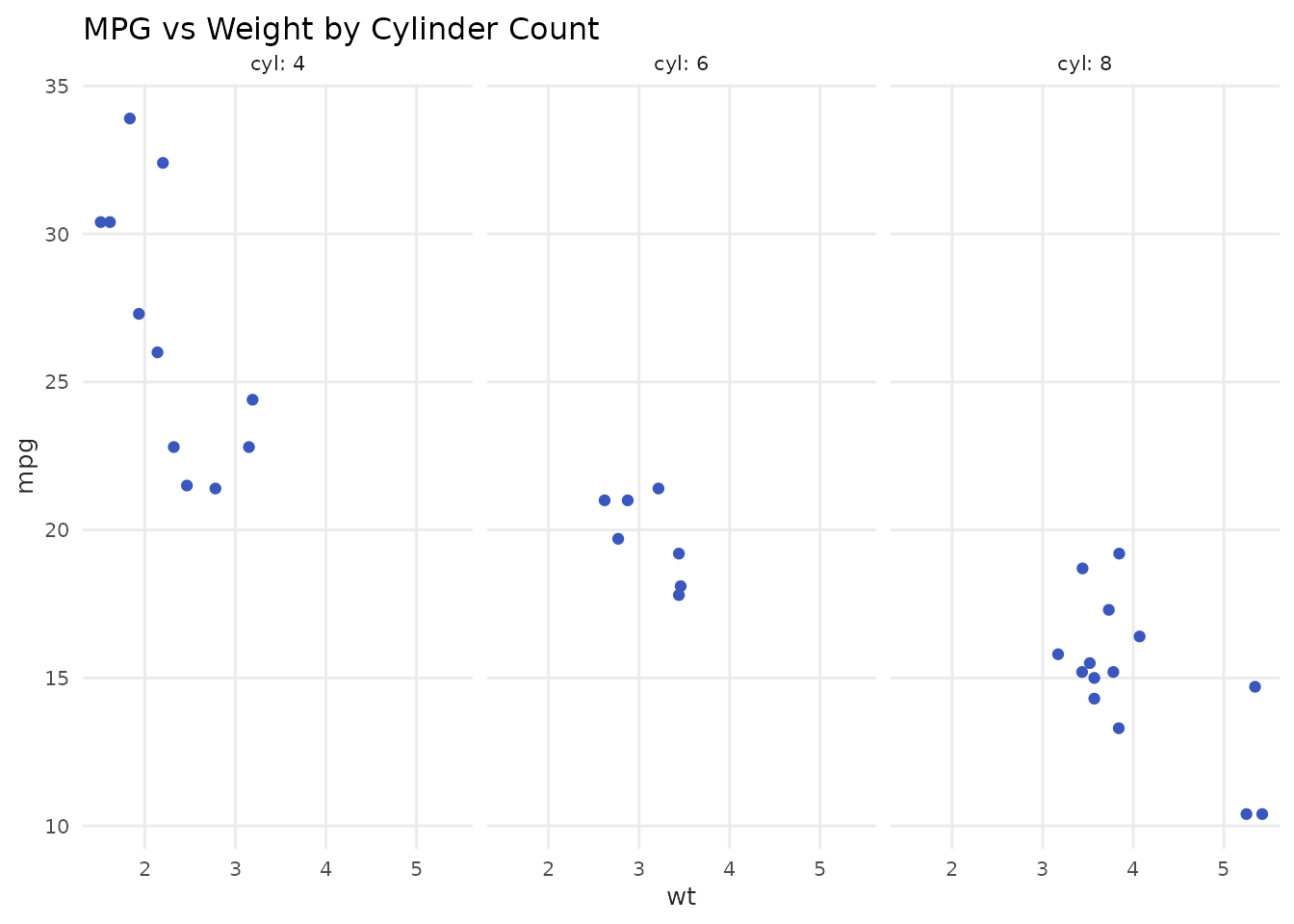
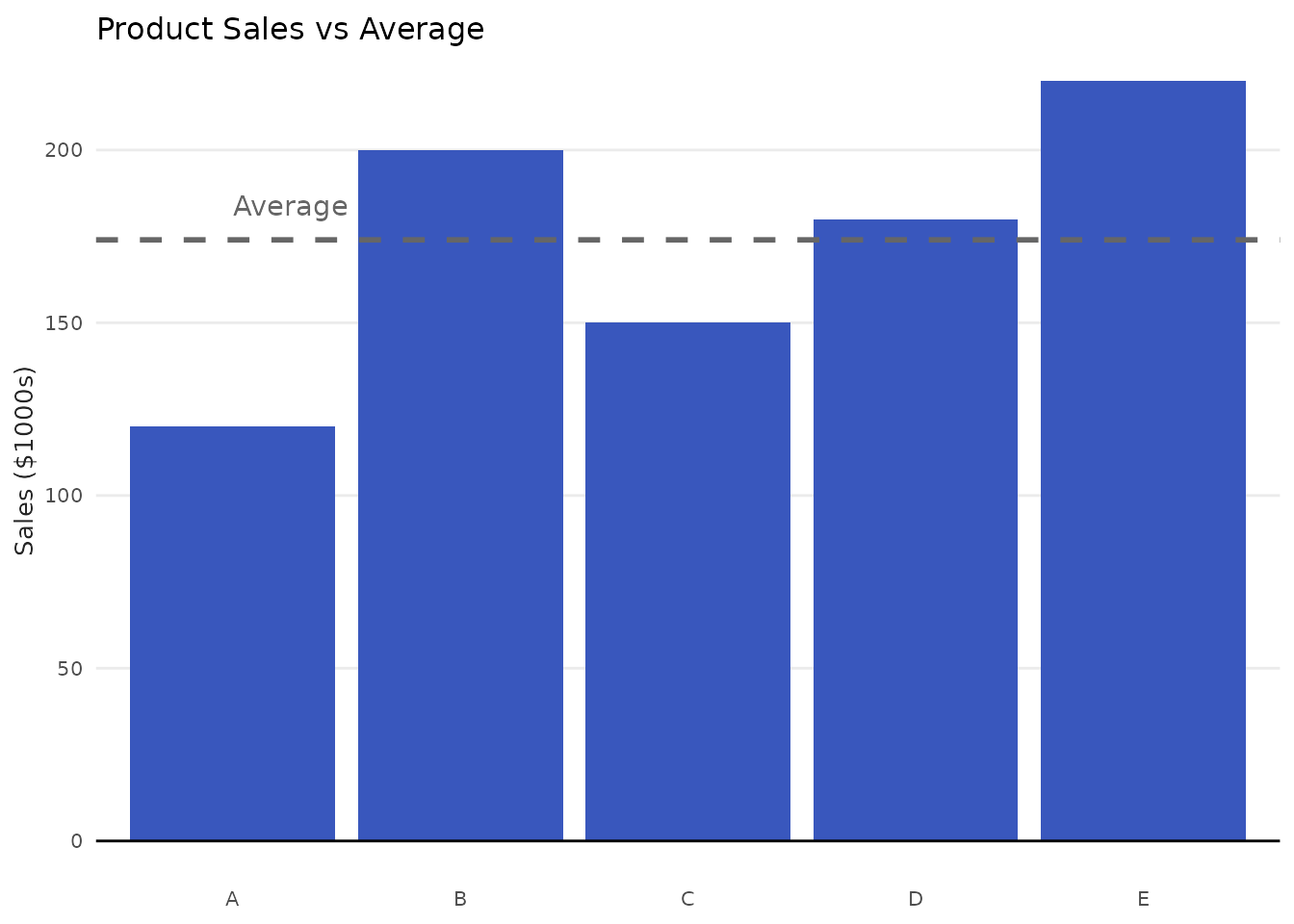
Combining Helper Functions with Manual ggplot2
# Start with helper function, then customize extensively
plot_column(products, x = product, y = sales) +
  geom_hline(
    yintercept = mean(products$sales),
    linetype = "dashed",
    color = "gray40",
    linewidth = 1
  ) +
  annotate(
    "text",
    x = 1,
    y = mean(products$sales) + 10,
    label = "Average",
    hjust = 0,
    color = "gray40"
  ) +
  labs(
    title = "Product Sales vs Average",
    y = "Sales ($1000s)"
  )
When to Use Helper Functions vs. Pure ggplot2
Use Helper Functions When:
- ✓ Doing quick exploratory analysis
- ✓ Creating standard charts repeatedly
- ✓ Writing reports with consistent styling
- ✓ Teaching/prototyping
Use Pure ggplot2 When:
- ✓ Creating complex, custom visualizations
- ✓ Need precise control over every element
- ✓ Building unique chart types
- ✓ Combining multiple geometries in unusual ways
Remember: Helper functions are just shortcuts. You can always start with a helper and customize with ggplot2 layers!
Customization Examples
Custom Colors Without variable
# Use specific benvi color
my_color <- benvi_palette("benvi_blue")[3]

plot_line(iqa, x = date, y = index, color = my_color) +
  labs(title = "Custom Color Line Chart")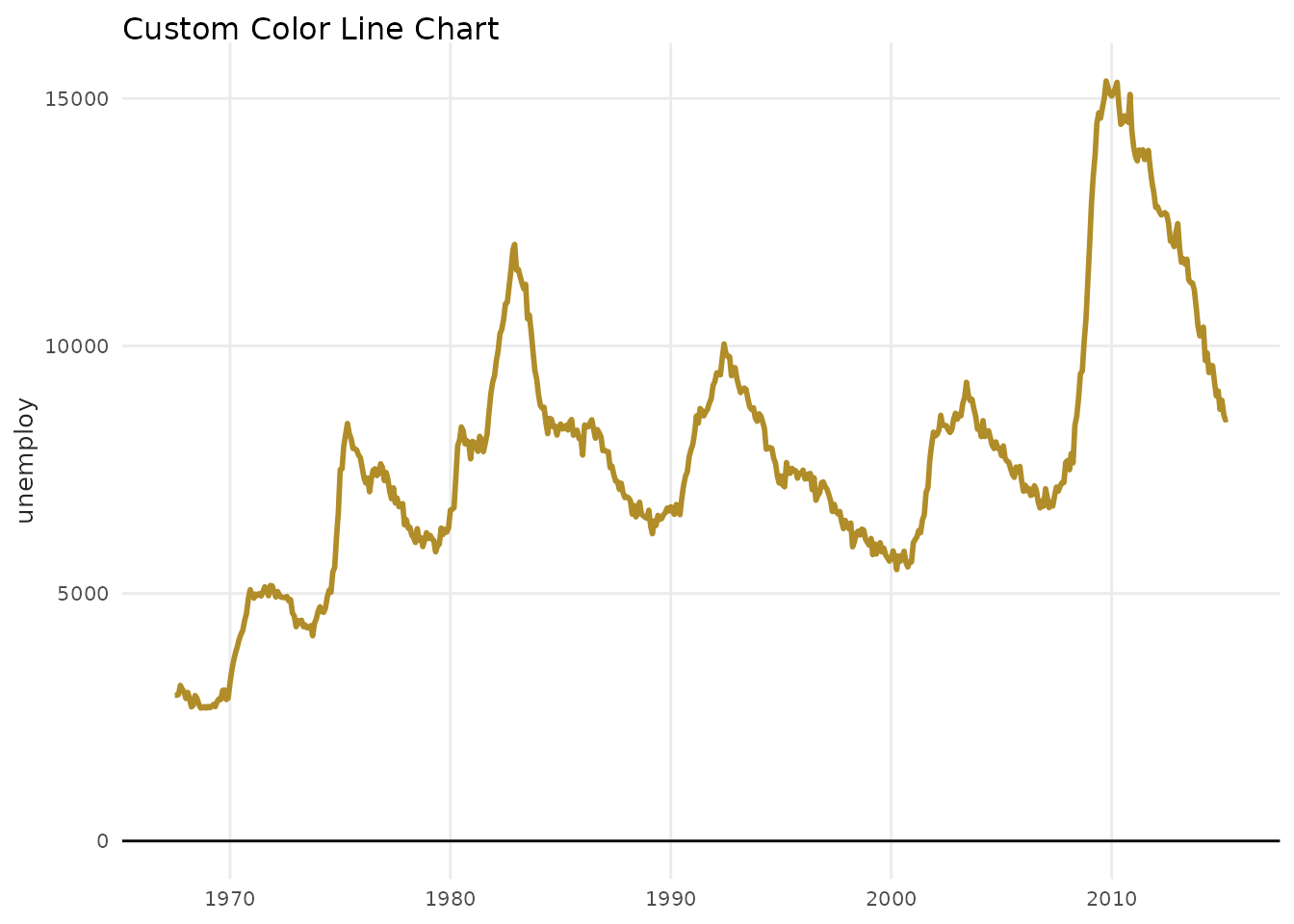
Custom Legend
plot_scatter(
  latest_sales,
  x = price_m2_listing,
  y = price_m2_contract,
  variable = name_muni,
  palette = "purples",
  scale_name = "City",
  scale_label = c("BH", "RJ", "SP")
) +
  theme(legend.position = "bottom")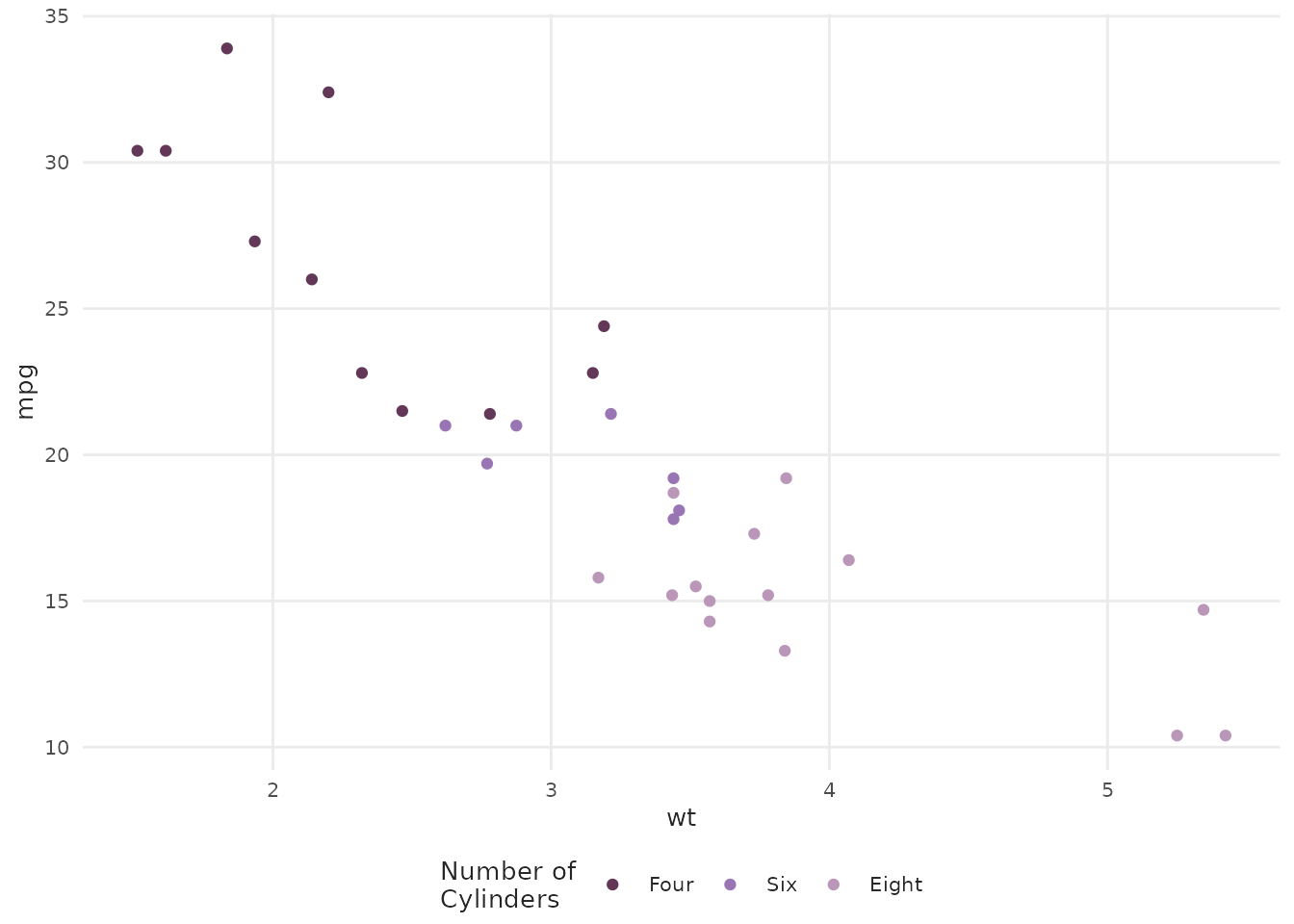
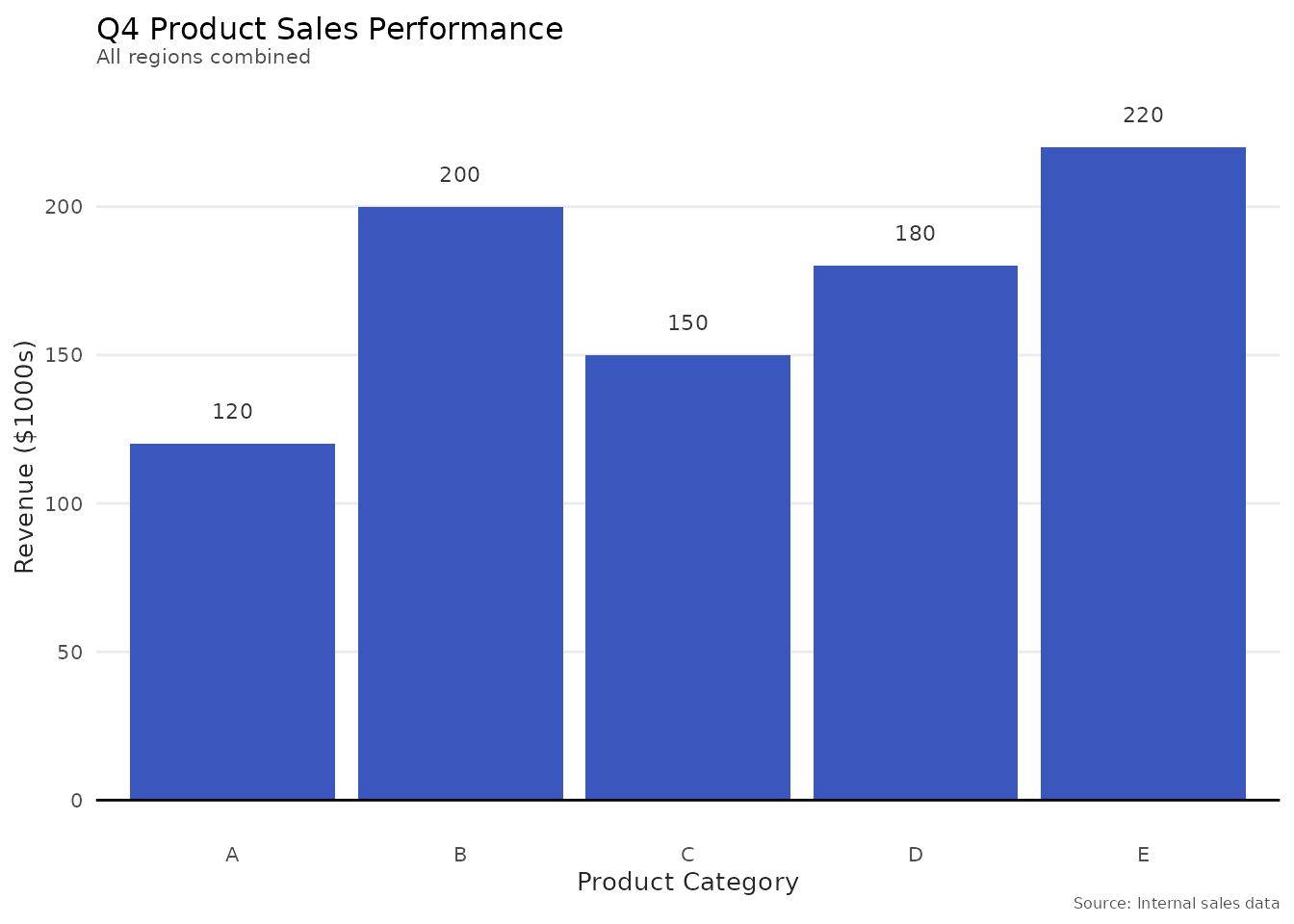
Adding Titles and Labels
plot_column(products, x = product, y = sales, text = TRUE) +
  labs(
    title = "Q4 Product Sales Performance",
    subtitle = "All regions combined",
    x = "Product Category",
    y = "Revenue ($1000s)",
    caption = "Source: Internal sales data"
  )
Tips and Best Practices
1. Choose Appropriate Chart Types
-
Trends over time:
plot_line()orplot_area() -
Comparing categories:
plot_column() -
Relationships:
plot_scatter() -
Distributions:
plot_histogram()
2. Limit Colors
When using variable, keep groups ≤ 7 for
readability:
# Good: 2 groups
index_few <- subset(index_subset, name_muni %in% c("São Paulo", "Rio de Janeiro"))
plot_line(index_few, x = date, y = index, variable = name_muni, pal_name = "yellows")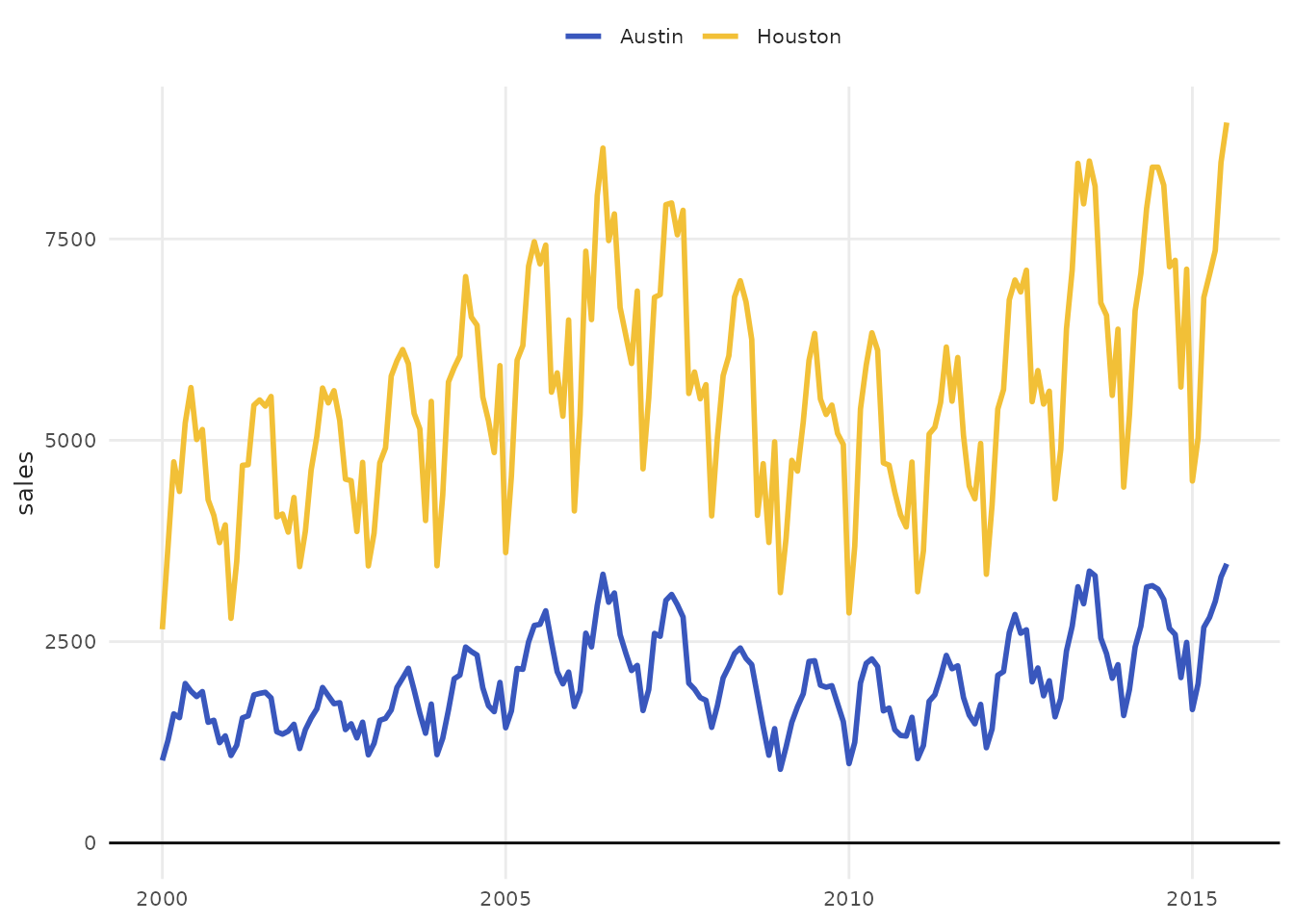
3. Use Appropriate Palettes
-
Categorical groups: Use
Qual*orSet*palettes -
Sequential/ordered: Use
Seq*palettes
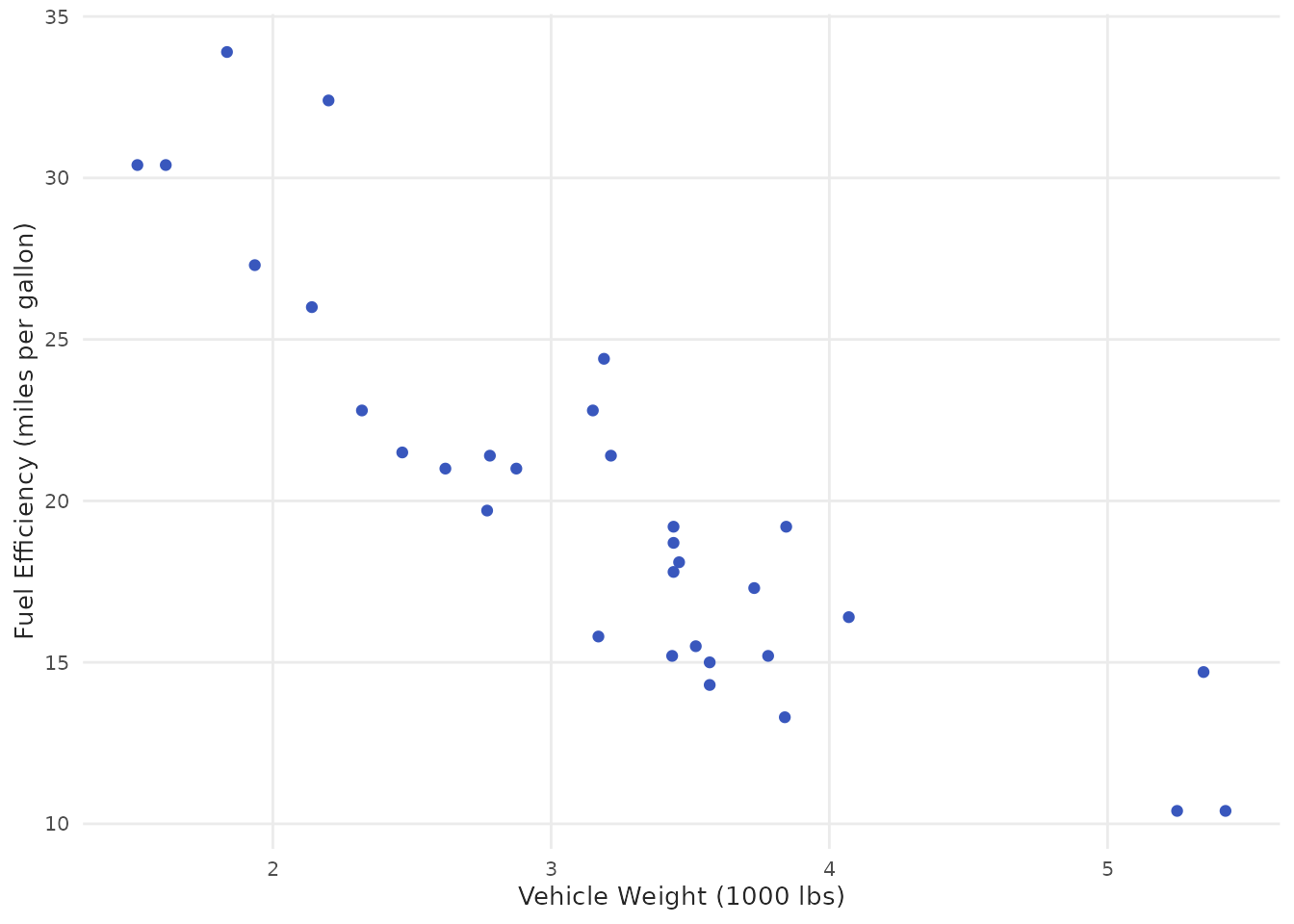
4. Always Label Your Axes
plot_scatter(spo_latest, x = price_m2_listing, y = price_m2_contract) +
  labs(
    x = "Listing Price (R$/m²)",
    y = "Contract Price (R$/m²)"
  )
Function Reference Summary
| Function | Best For | Key Feature |
|---|---|---|
plot_line() |
Time series, trends |
point parameter |
plot_column() |
Category comparisons |
text labels |
plot_scatter() |
Correlations |
fit trend lines |
plot_area() |
Cumulative values | Stacked areas |
plot_histogram() |
Distributions | Multiple binning methods |
Troubleshooting
Colors not showing
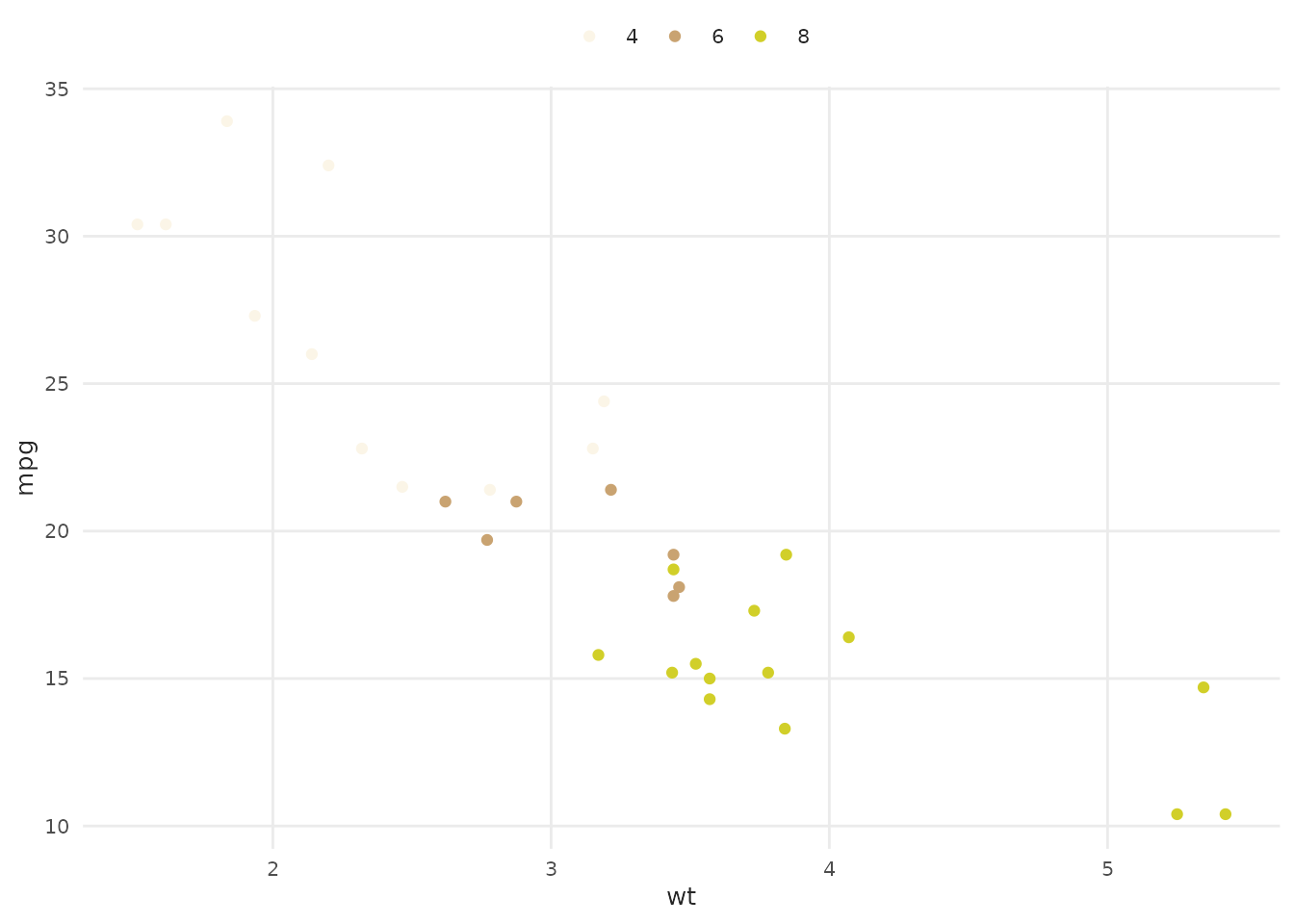
When using variable, ensure it’s a factor or
categorical:
# Ensure categorical variables are factors if needed
plot_scatter(
  latest_sales,
  x = price_m2_listing,
  y = price_m2_contract,
  variable = name_muni,  # Already character/factor
  palette = "qual_benvi"
)
Palette errors
Check that palette exists and has enough colors:
# View available colors
benvi_palette("qual_5")

# Ensure you don't exceed available colors for discrete palettes
Summary
In this vignette you learned:
- ✓ How to use all plot helper functions
- ✓ Common parameters across functions
- ✓ When to use helpers vs. pure ggplot2
- ✓ How to customize and extend helper plots
- ✓ Best practices for effective visualizations
Next Steps
- See
vignette("color-palettes")for complete palette gallery - See
vignette("themes-and-styling")for theme customization - Explore individual function documentation:
?plot_line,?plot_scatter, etc.